Azure DevOps Series - Azure Boards

𝑪𝒍𝒐𝒖𝒅 𝒂𝒏𝒅 𝑫𝒆𝒗𝑶𝒑𝒔 𝑻𝒆𝒄𝒉 𝑪𝒐𝒎𝒎𝒖𝒏𝒊𝒕𝒚 || 𝑷𝒓𝒐𝑫𝒆𝒗𝑶𝒑𝒔𝑮𝒖𝒚 🤖 https://t.me/prodevopsguy 👋 Hi there! We are ProDevOpsGuy, a passionate DevOps enthusiast Tech Community with a strong belief in the power of automation and collaboration to drive innovation. 🚀 I thrive in bridging the gap between development and operations, creating seamless and efficient software delivery pipelines. My journey in the world of DevOps has allowed me to blend my technical skills with a knack for problem-solving, enabling me to contribute effectively to agile and dynamic environments. 💡 With a keen interest in continuous integration, continuous delivery (CI/CD), containerization, and orchestration, I've had the privilege to explore cutting-edge technologies like Docker, Kubernetes, Jenkins, and Ansible. I find joy in designing scalable and resilient infrastructures that enable teams to deploy applications faster and with greater confidence. 🌐 Beyond the tech realm, I'm an advocate for DevOps culture, emphasizing collaboration, communication, and a relentless pursuit of improvement. I'm always eager to connect with fellow professionals, exchange insights, and explore opportunities to collaborate on exciting projects. 📚 When I'm not tinkering with the latest DevOps tools, you can find me indulging in books on technology trends, hiking to rejuvenate, and occasionally experimenting with new coding challenges. 🌟 Let's connect! Whether you're looking to discuss DevOps methodologies, explore partnership opportunities, or simply share experiences, feel free to reach out. I'm excited to be part of the DevOps journey, driving excellence together.
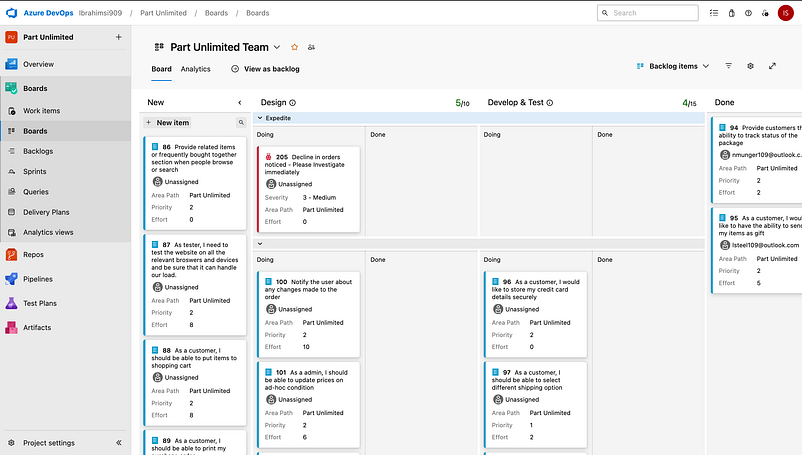
Azure Boards is a service for managing the work for your software projects. Teams need tools that flex and grow.
Azure Boards
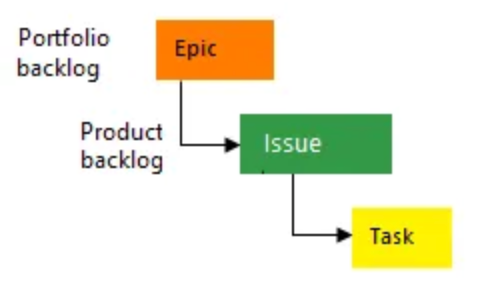
Azure Boards does just that, brining you a rich set of capabilities including native support for Scrum and Kanban, customizable dashboards, and integrated reporting. Here you are aided by three work item types:
Epics
Issues
Tasks
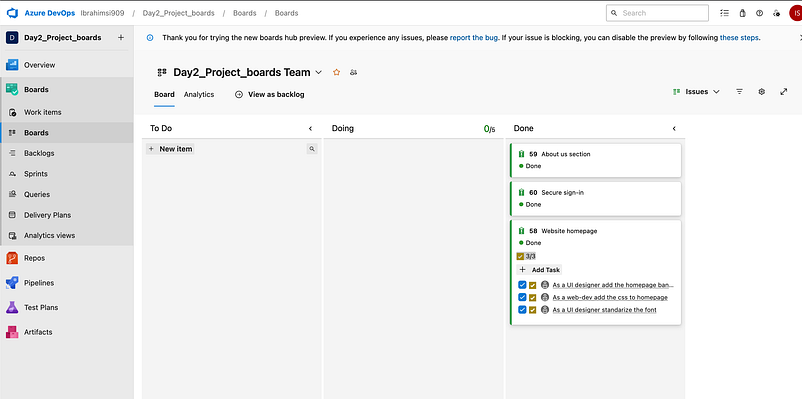
Also as the work gets completed the status gets updated stage by stage from:
To Do
Doing
Done
Here is the image below depicting the same

Each time we create or add an issue, task or an epic, it means we are creating a work item.
Useful links below, hope it helps.
Choose a process ← Process
Agile workflow ← Agile
CMMI workflow ← CMMI
Agile is an iterative approach to project management and software development that helps teams deliver value to their customers faster and with fewer headaches.
The Capability Maturity Model Integration (CMMI) is a model that helps organizations to: Effectuate process improvement. Develop behaviors that decrease risks in service, product, and software development
Azure Boards Processes
Basic: Choose Basic when your team wants the simplest model that uses Issues, Tasks, and Epics to track work.
Agile: Methodology is a way to manage a project by breaking it up into several phases.
Scrum: Framework for creating and maintaining a consistent rate of work for complex projects.
CMMI: Structured collection of best practices in engineering, service delivery and management, which aims to assist companies improve their ability to deliver customer satisfaction through an ever increasing understanding of their capabilities.
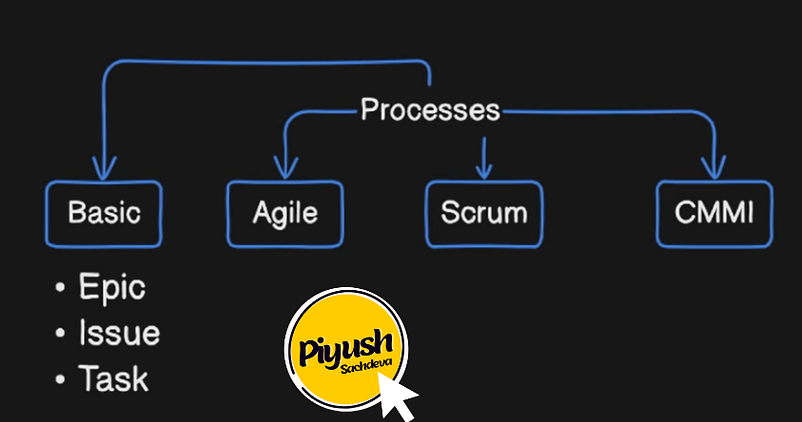
The basic process contains three work item types:
Epics: Group your more significant items into Epics such as Website updates, Cloud migration, CICD implementation
Issues: Further divide your Epics into Issues such as Homepage, about us page, secure sign-in
Task: Tasks are the smallest amount of work that can be assigned to someone, for example, designing a homepage header, standardizing fonts, and fixing the homepage CSS to make it mobile responsive.
Read more ← Azure Boards
Defining Teams and Work Items
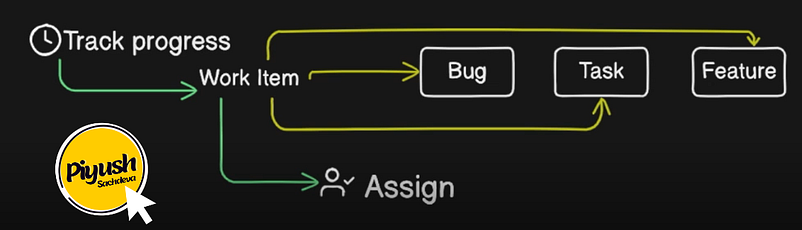
What is a Work Item:
A work item can track all types of activities. It could be a
Task to do
A bug to fix,
An issue or anything that we can assign to people and keep track of the progress.
Kanban Board
Kanban is a visual system for managing work as it moves through a process. Kanbanvisualizes both the process (the workflow) and the actual work passing through that process.
Kanban has two significant elements namely:
Cards
Boards
The board can be physical, but the software team has a preference towards virtual board as this could be easily accessed from various locations and thus makes the team collaboration more proficient.
Usually, the board can be split into three sections namely:
To-Do
In Progress
Done
Basic principles associated with the Kanban process
Visualize the workflow
Limit work in progress
Managing the workflow
Make explicit process policies
Implement feedback loops
Continuous Improvement
Hands-On
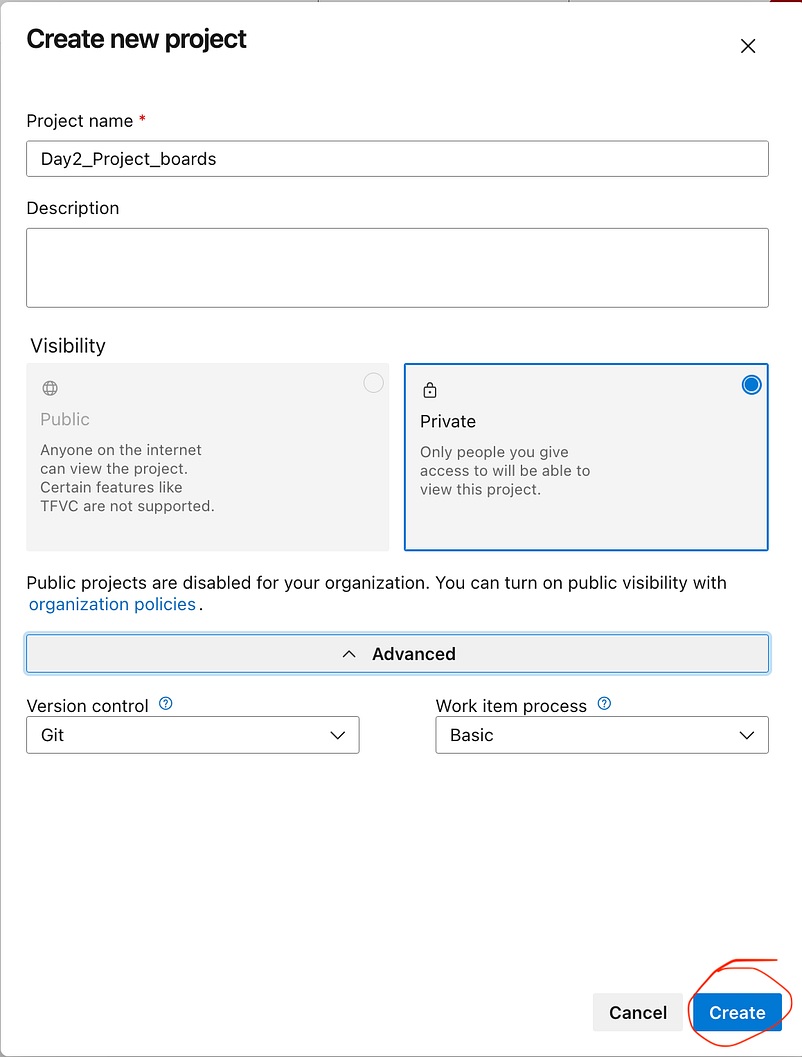
Create a new project
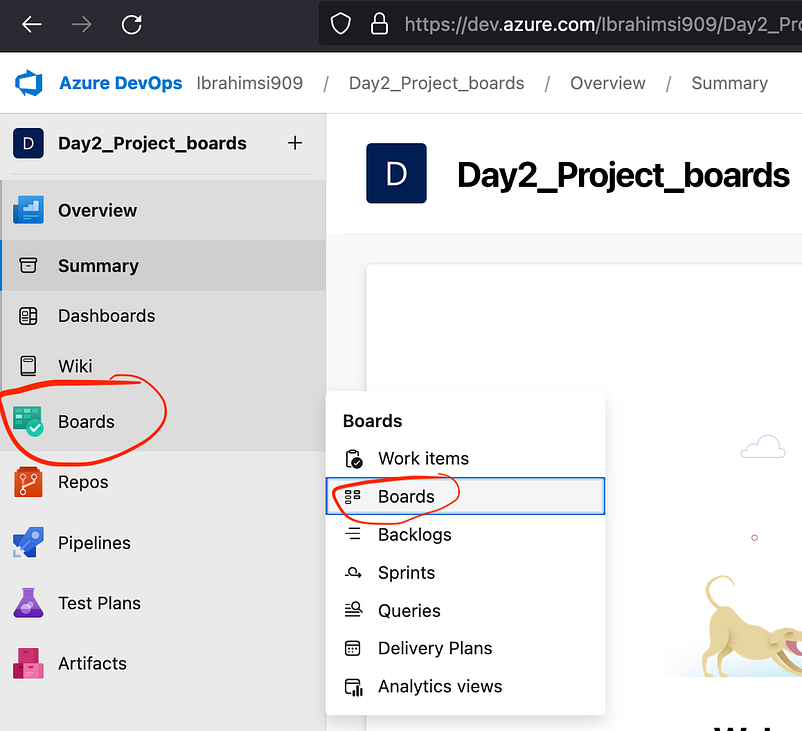
Click left side Boards → Boards
This is a todo list template or notion template and this a board view.
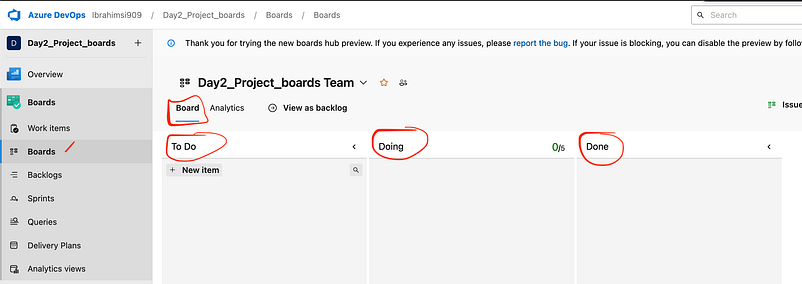
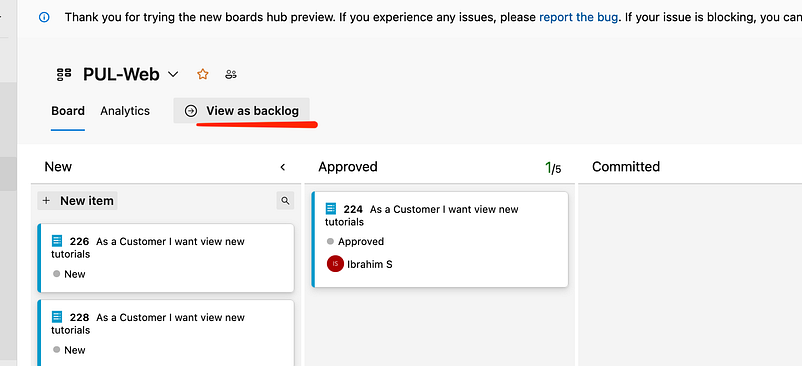
Swithch on the view as backlog. Using create a workitem and list over here.
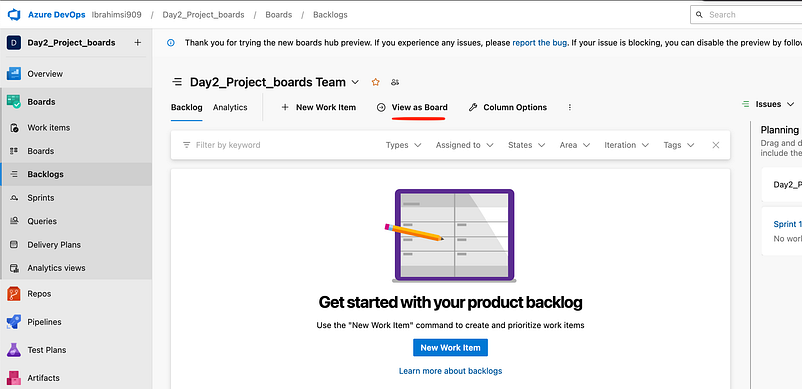
Lets go to the board view and lets try to add the work items.

Two types of workitem here
Epics
Issues
Create a workitem
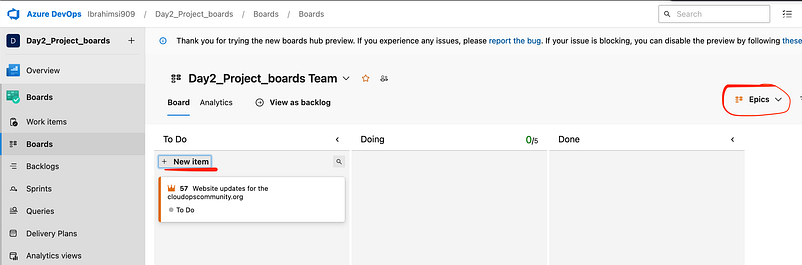
Click on the workitem it will be expand. So you can add more details
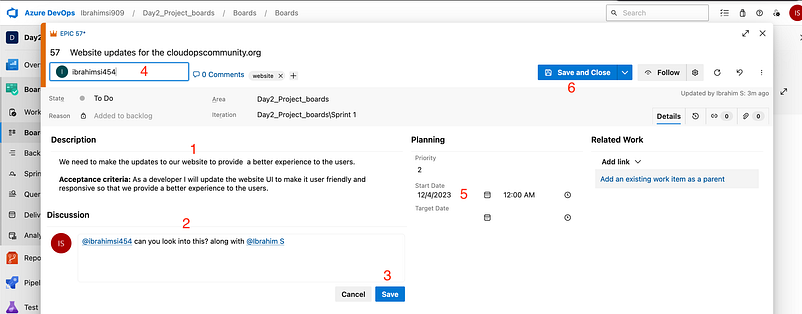
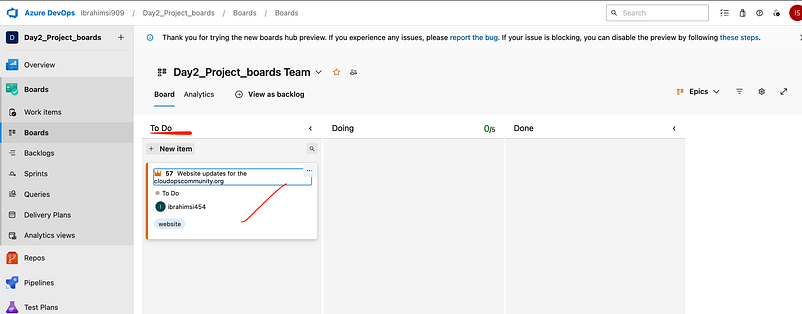
Created a first workitem which is to-do state
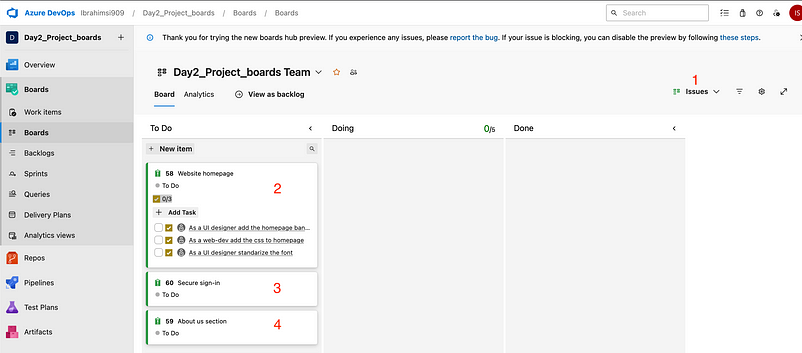
Create a new issues workitem and add to the task
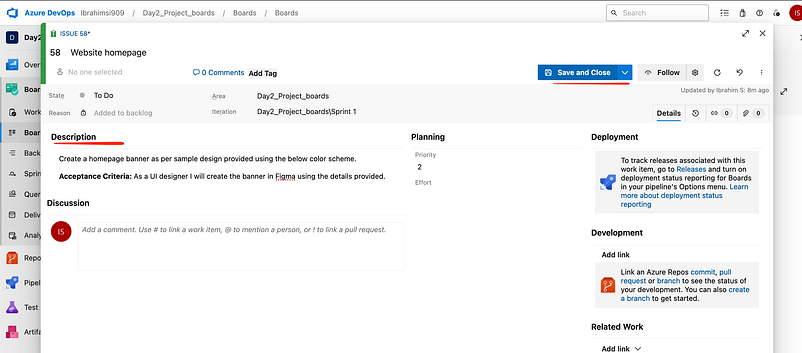
Expand the website homepage workitems. Add a description after save and close.
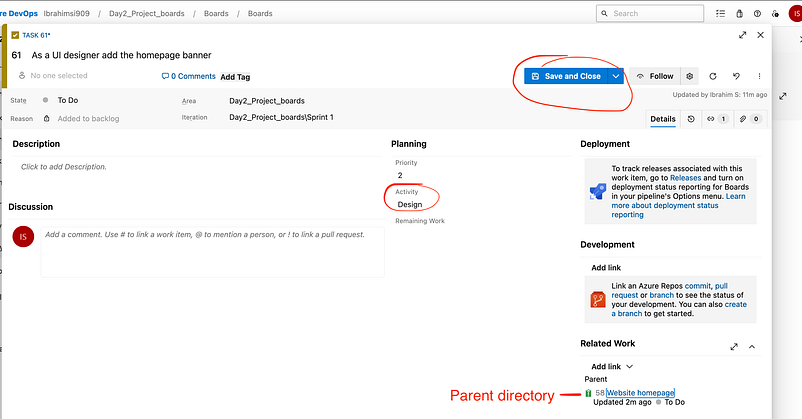
Click the particular task add the activity
Lets move to the workitem the task is complete.
We will go the advanced concept → Scrum
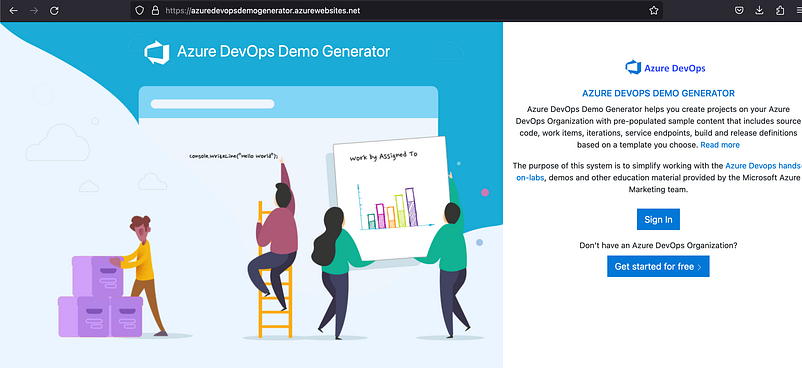
Go to this link → https://azuredevopsdemogenerator.azurewebsites.net/ → Sign In
Generates from dummy data in our project.
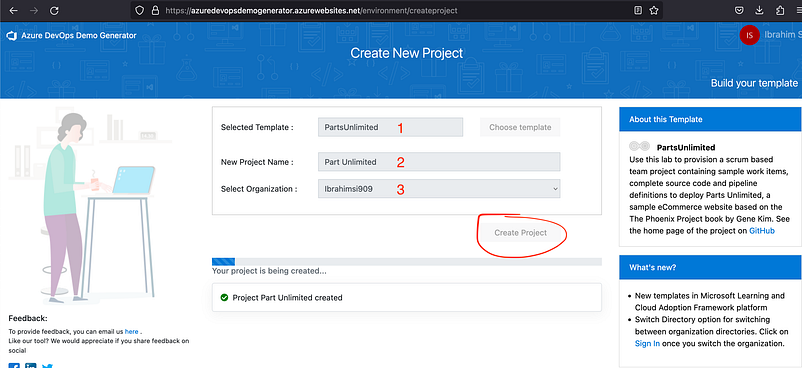
Create a new project → Select a template & Organization
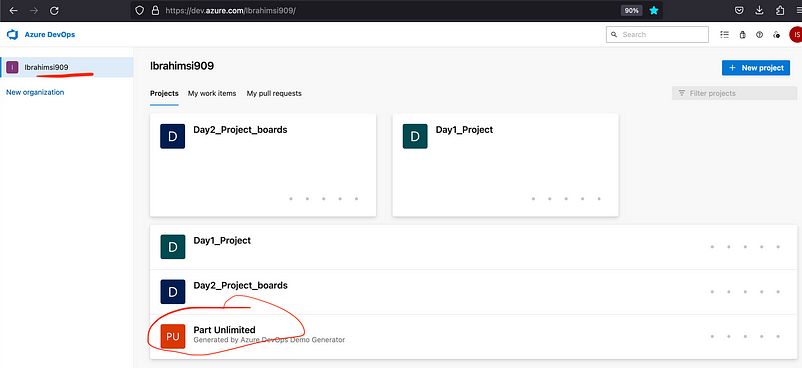
How to check the project created or not? Goto the organization the project showing
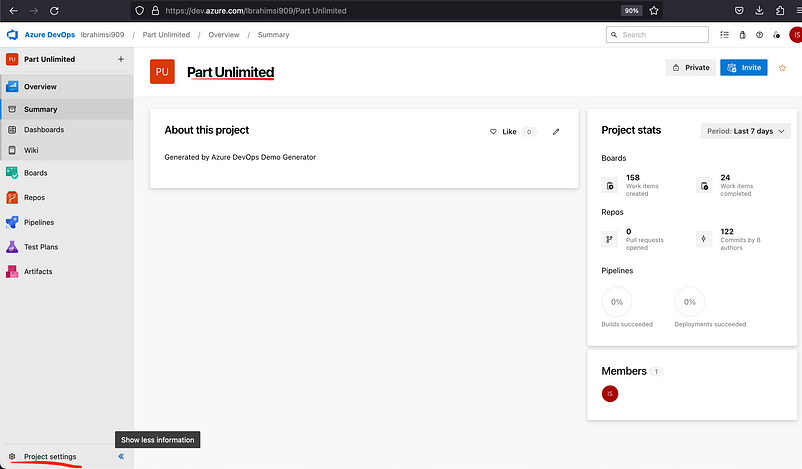
Make some changes in project setting
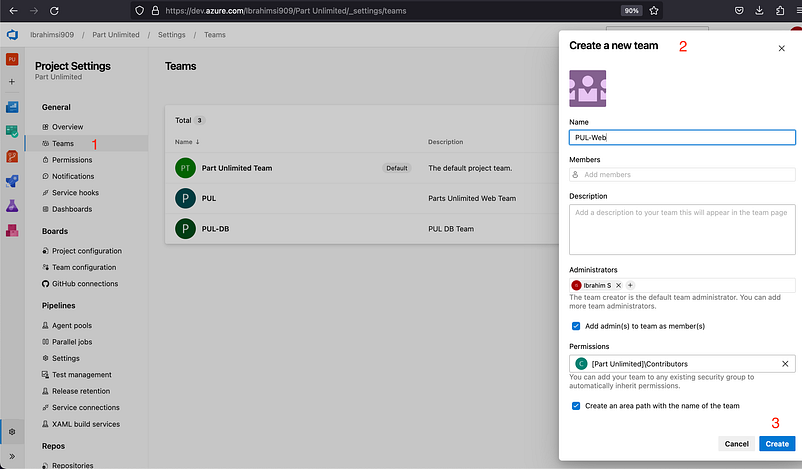
Create a new team
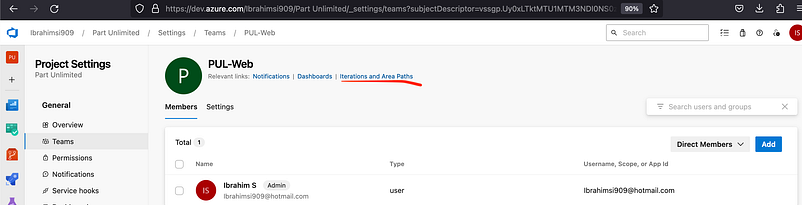
Open the PUL-Web after click iteration and access paths
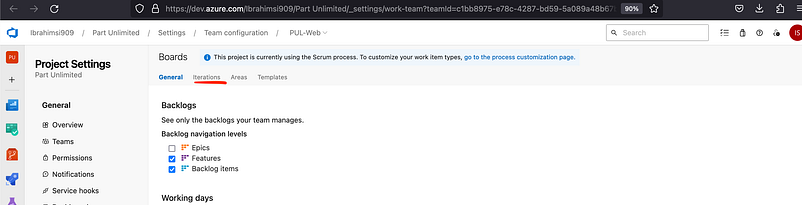
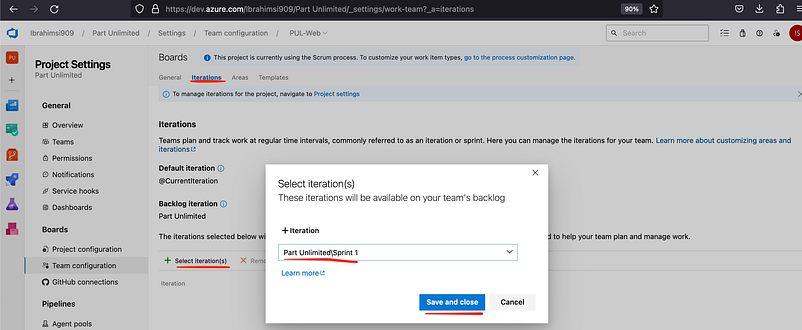
Goto iteration tab and add to the sprint
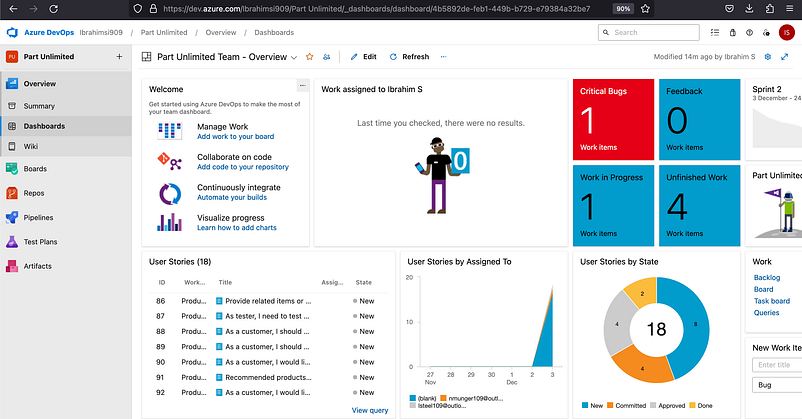
Goto my dashboard → Click Overview
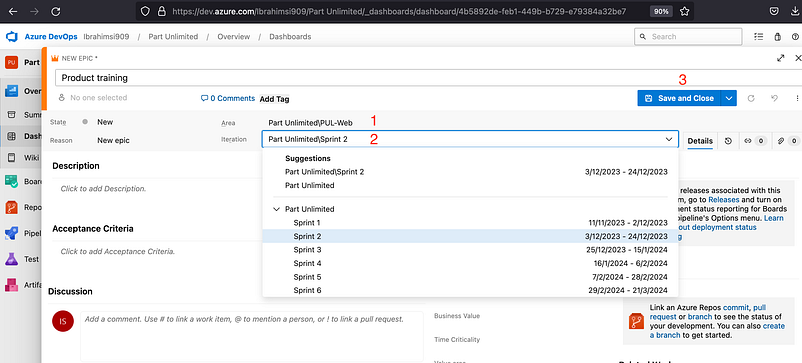
Create a new workitems add sprint2

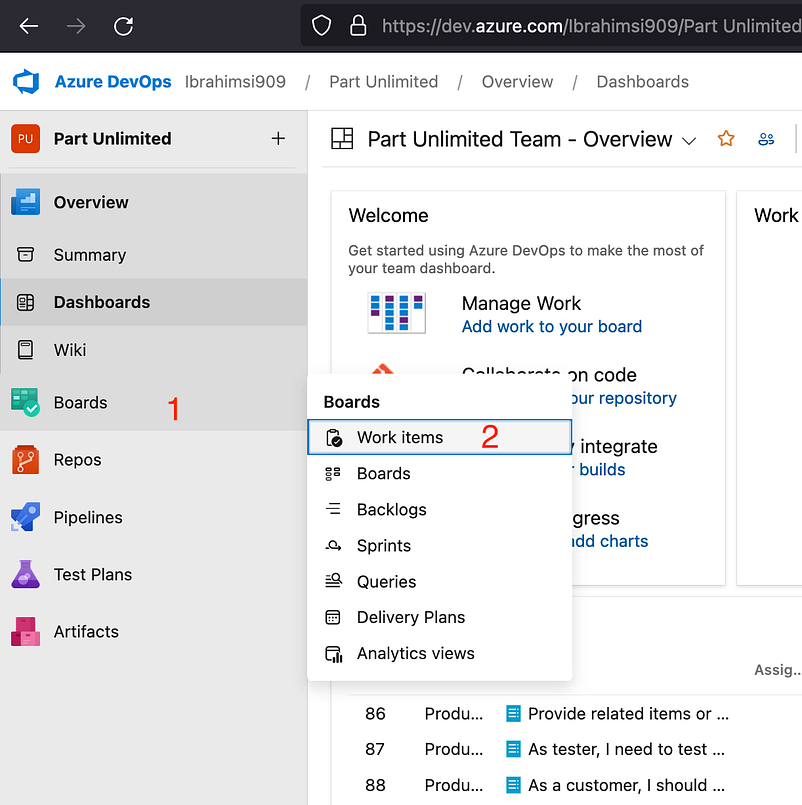
Goto boards → work items. If you have check the workitems created or not?

Add to the child work items
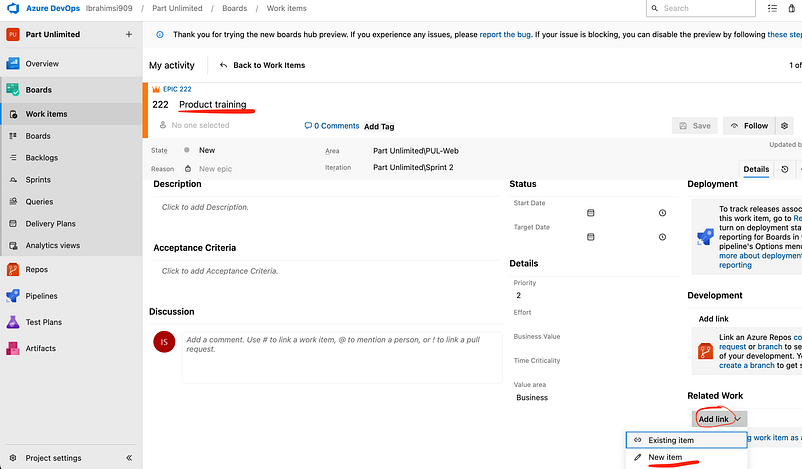
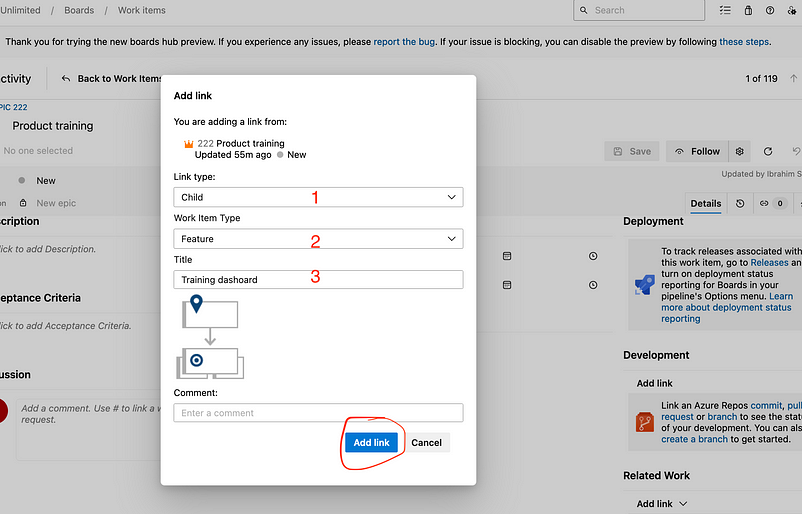
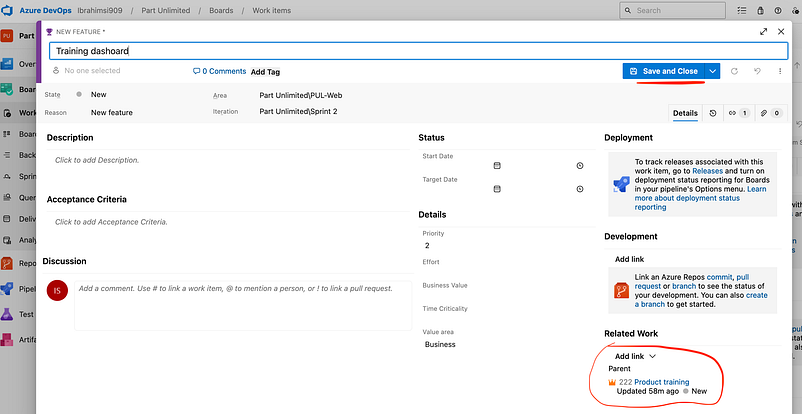
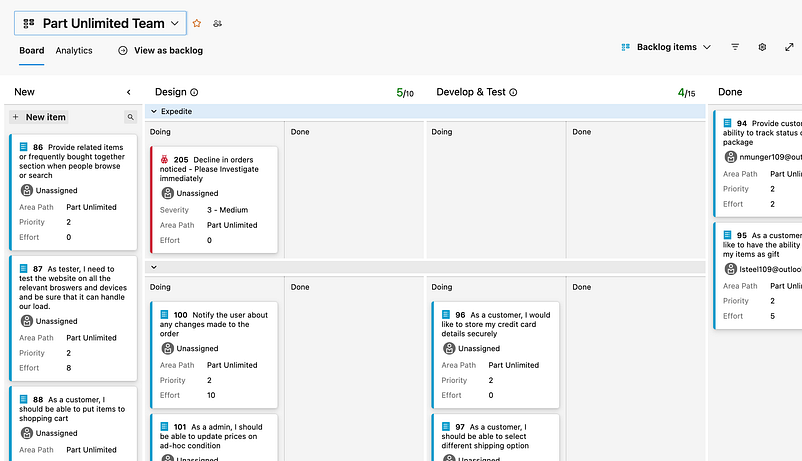
Goto the boars → My team boards → PUL-Web boards
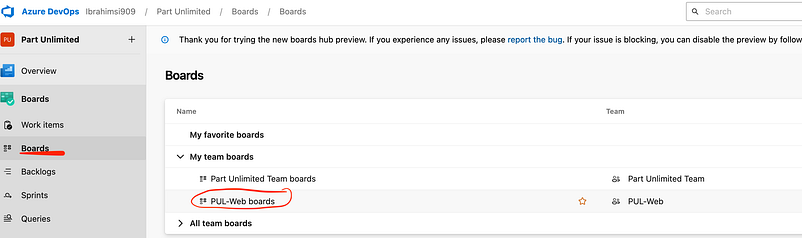
Change the features state → Add Product Backlog Item
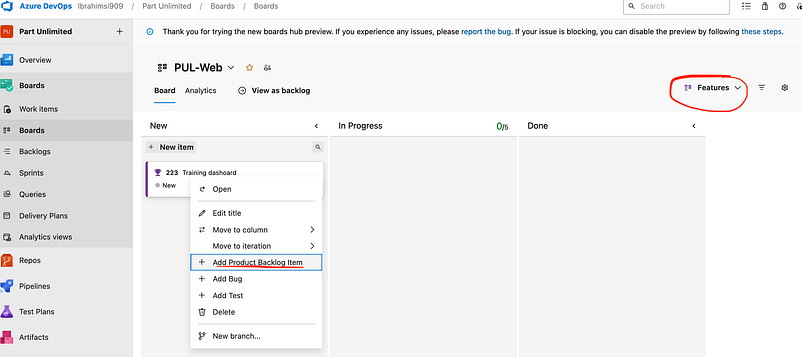
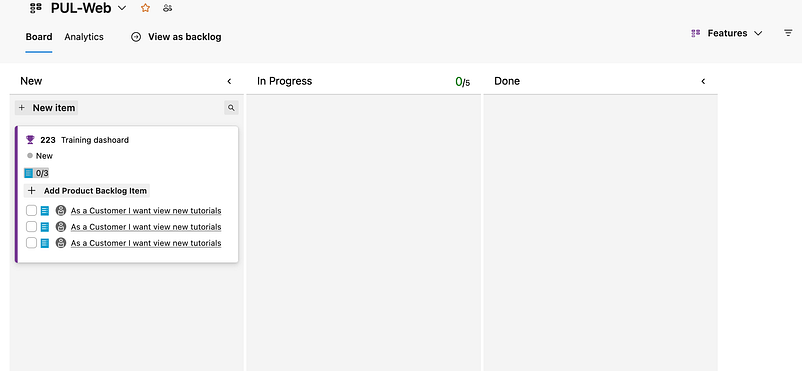
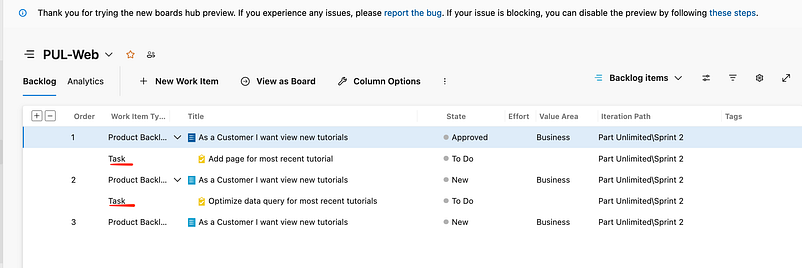
Goto the View as backlog you can approve the separate features and assign to the task particular members.
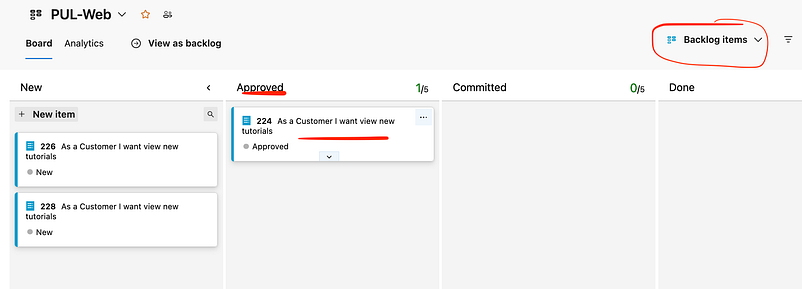
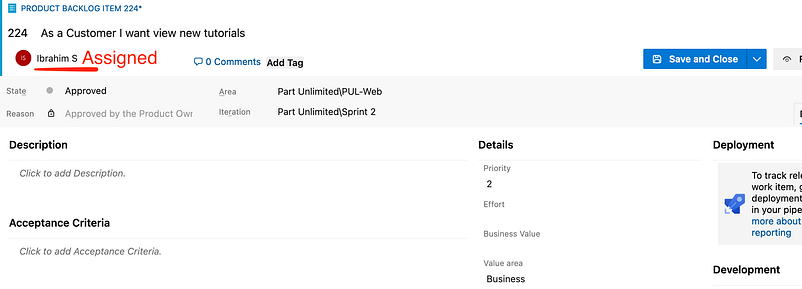
Click view as backlog → to create a task another way
Sprint means a fixed period of time during which the team commit and work towards a fixed goal which does not change.
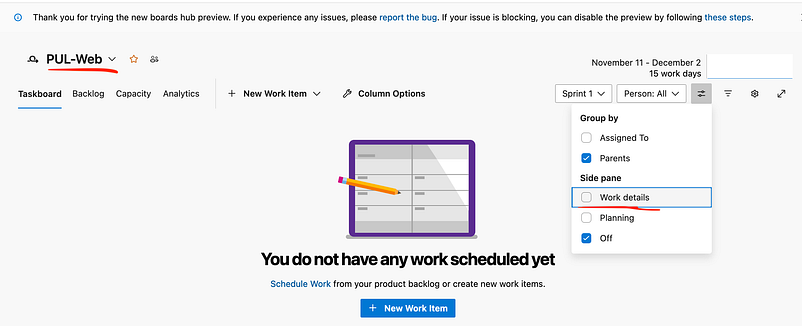
There is no changes in particular project
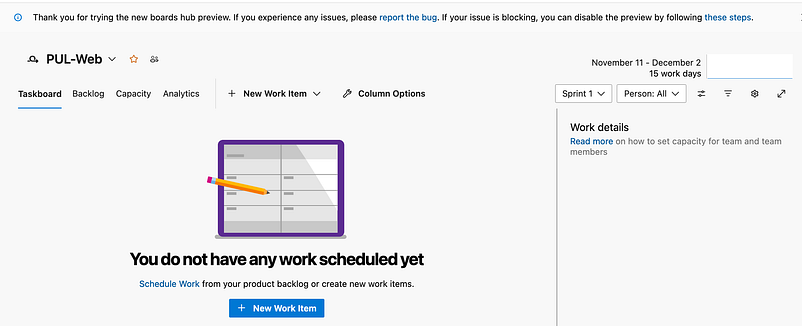
So if you change the project
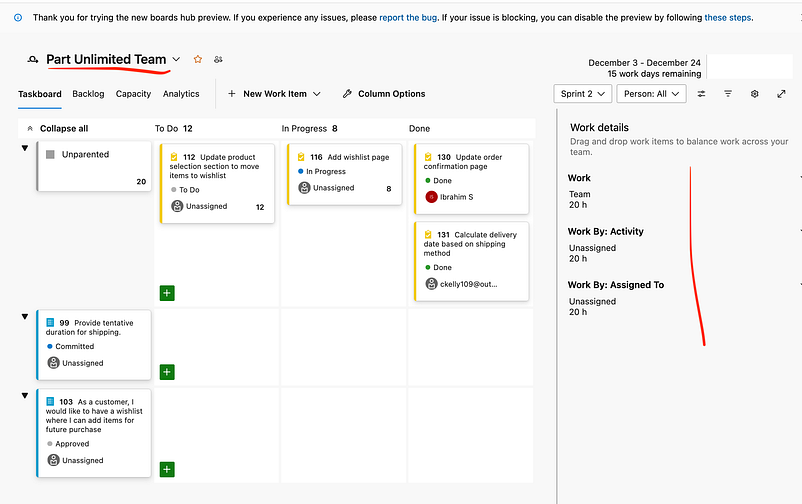
Now you add itetation. Goto Project setting → Team Configuration → Iterations
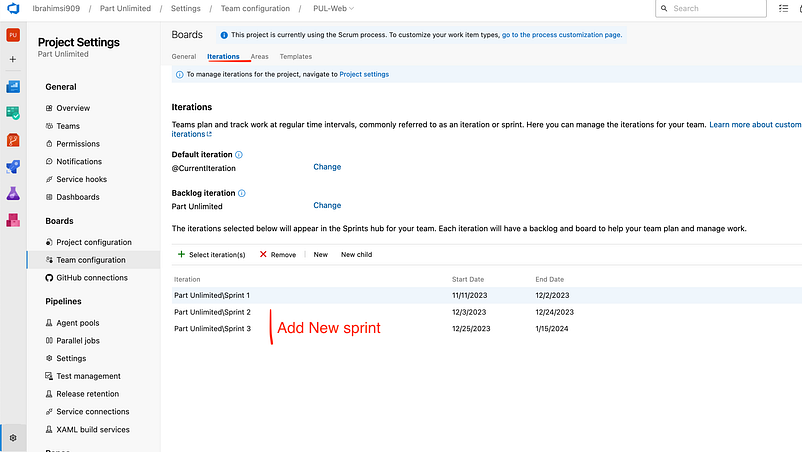
It shows the sprints

Assign to someone → Sometask
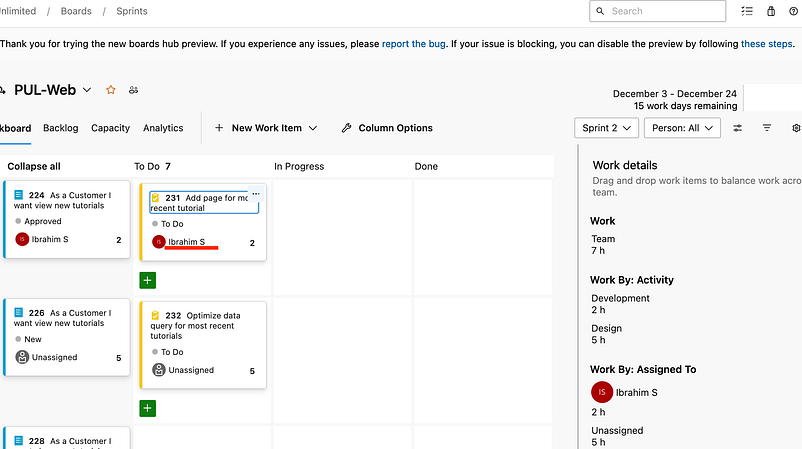
Capacity → adjust the team planning
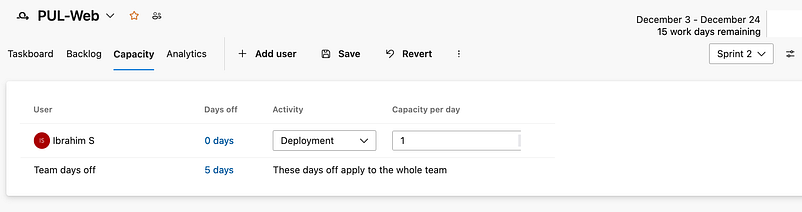
Goto the taskboard
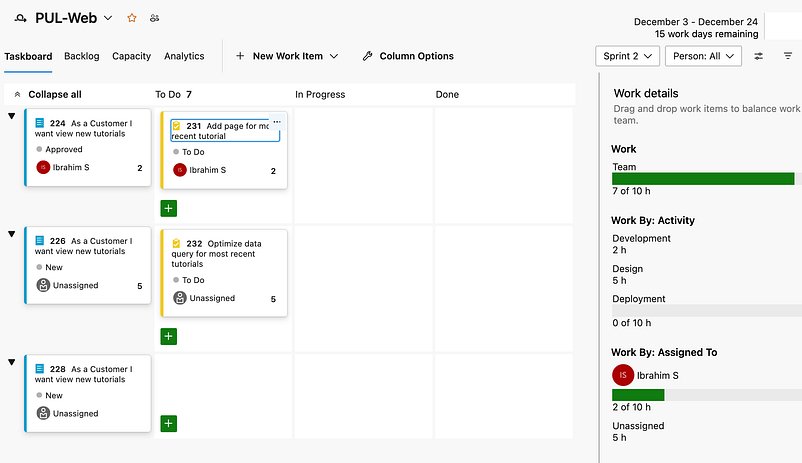
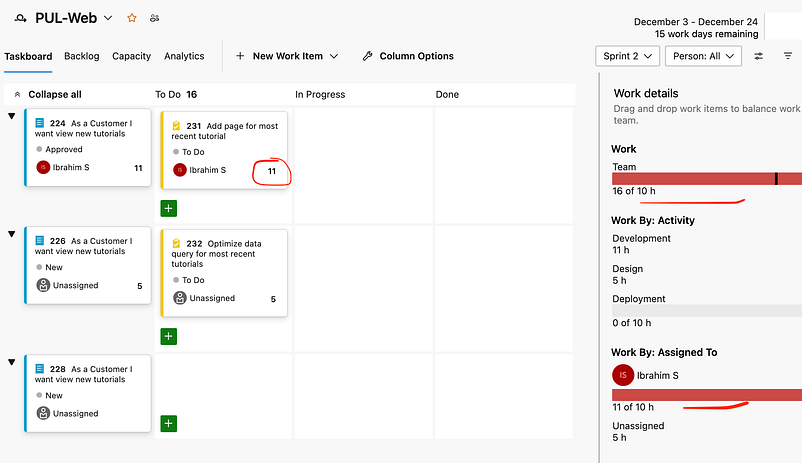
Modify the task the working hours automatically change
Or let move to the another sprint in particular tasks
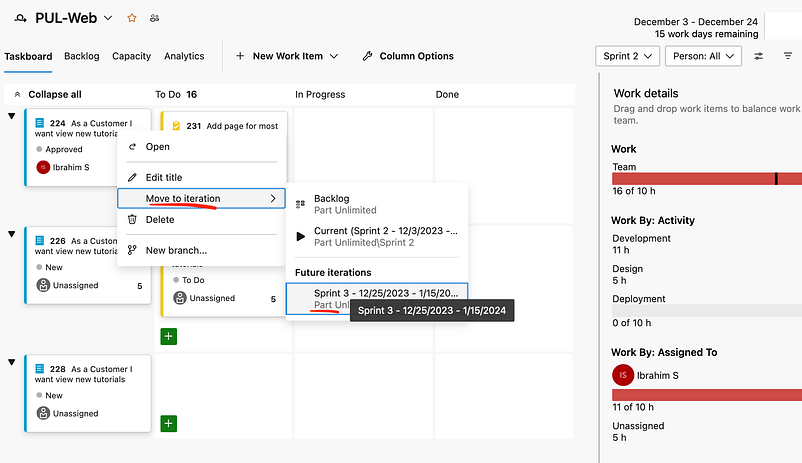
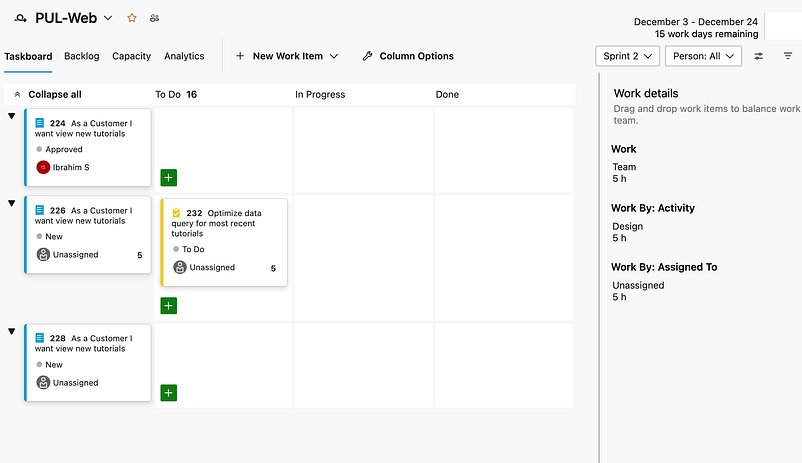
Lets check the sprint 3
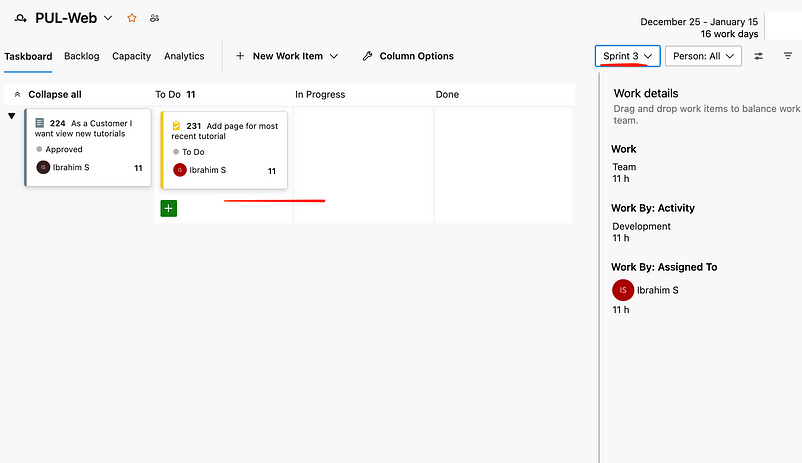
Easily identify the some color technique. Goto setting
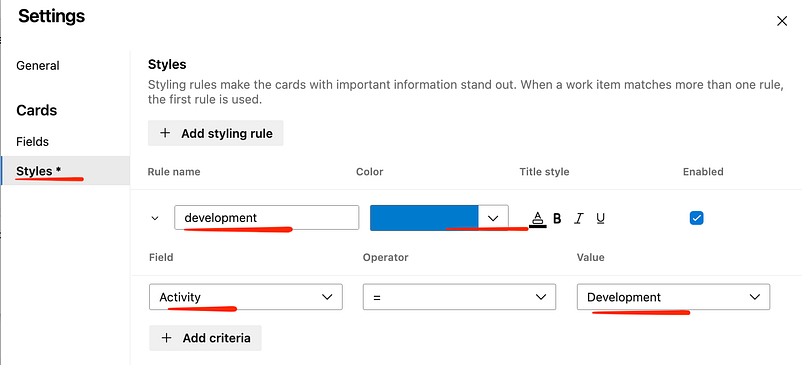
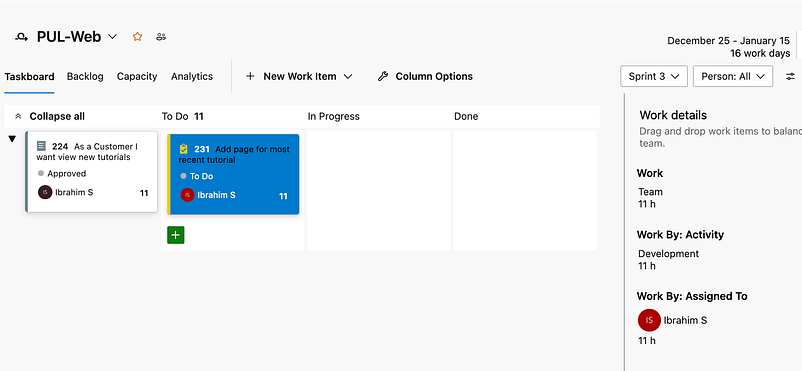
Go and check the development the color will be change
Changed the p1 issue show the red color
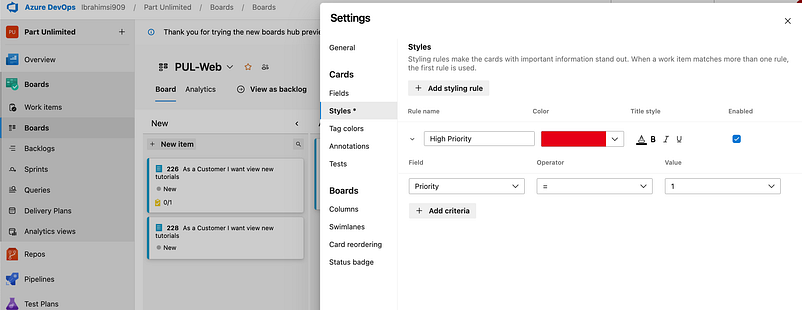

I change the priority select 1 color will automatically change
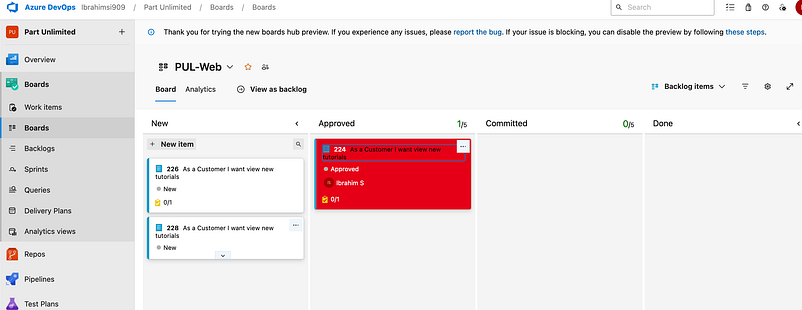
Other setting will be change → tag color
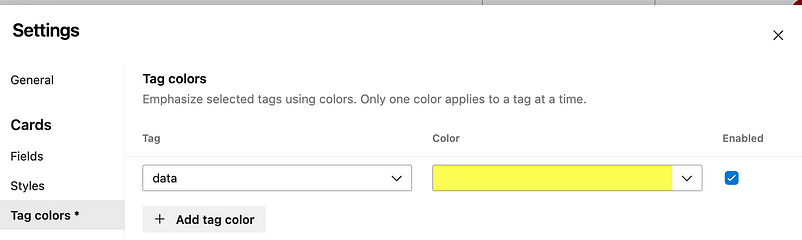
Add tag
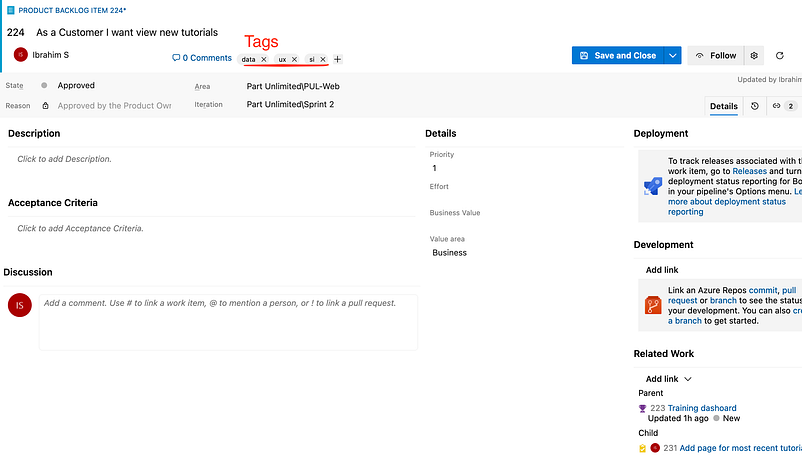
The automatically change the data tag
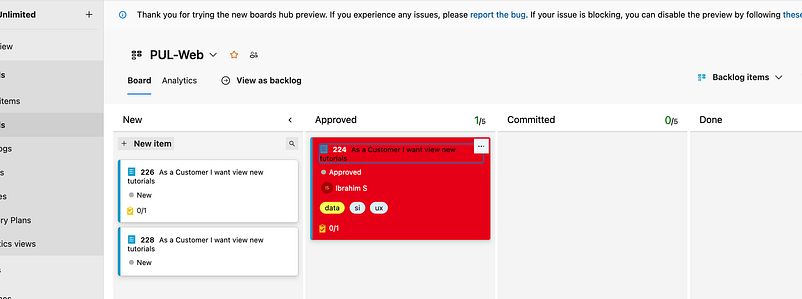
One more column add in work items
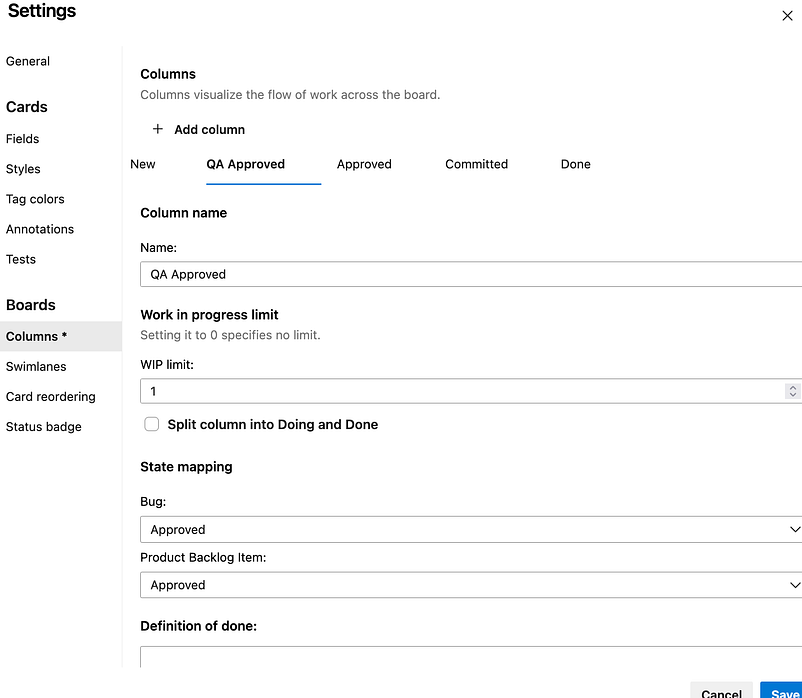
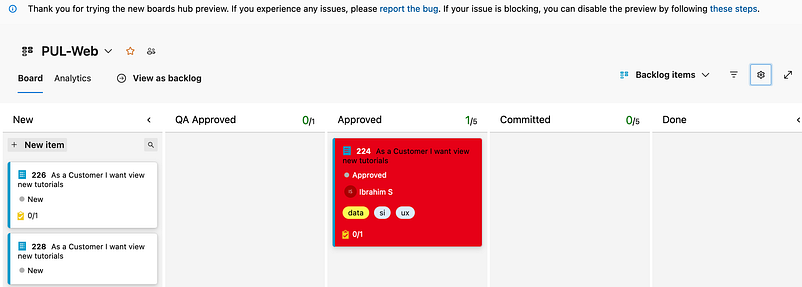
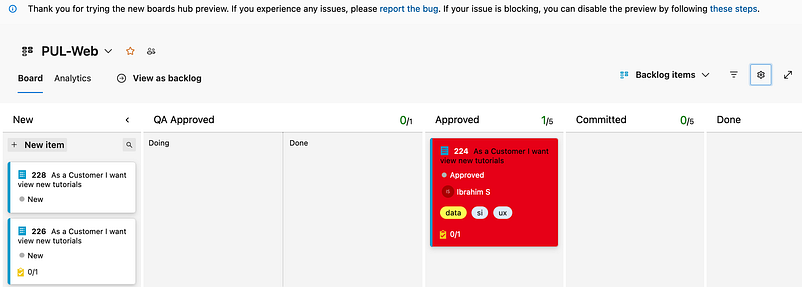
Split the column
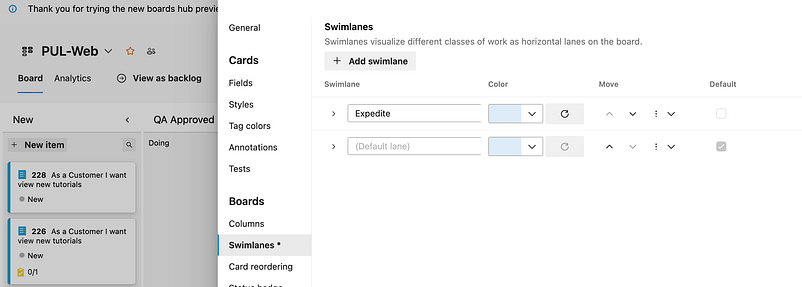
Swimlanes → Track the more items

Now check the another workitem
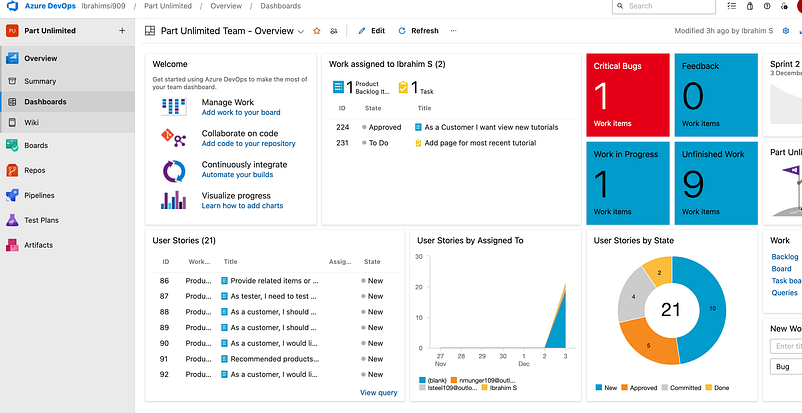
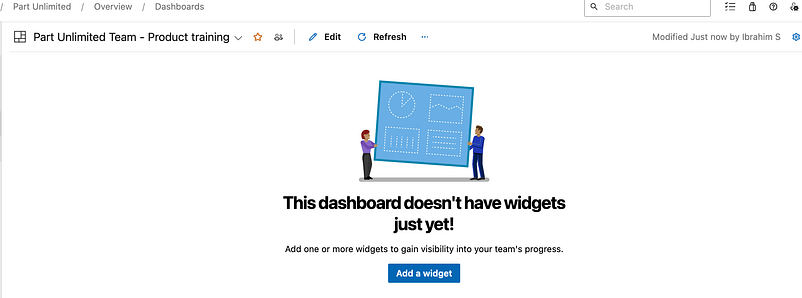
How to create a Custom dashboard
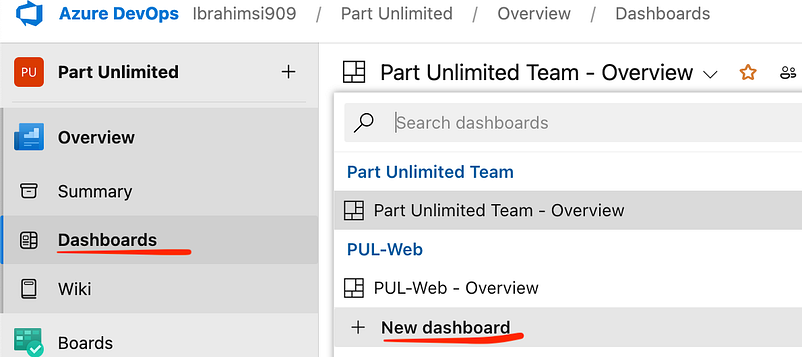
Dashboards → New dashboard
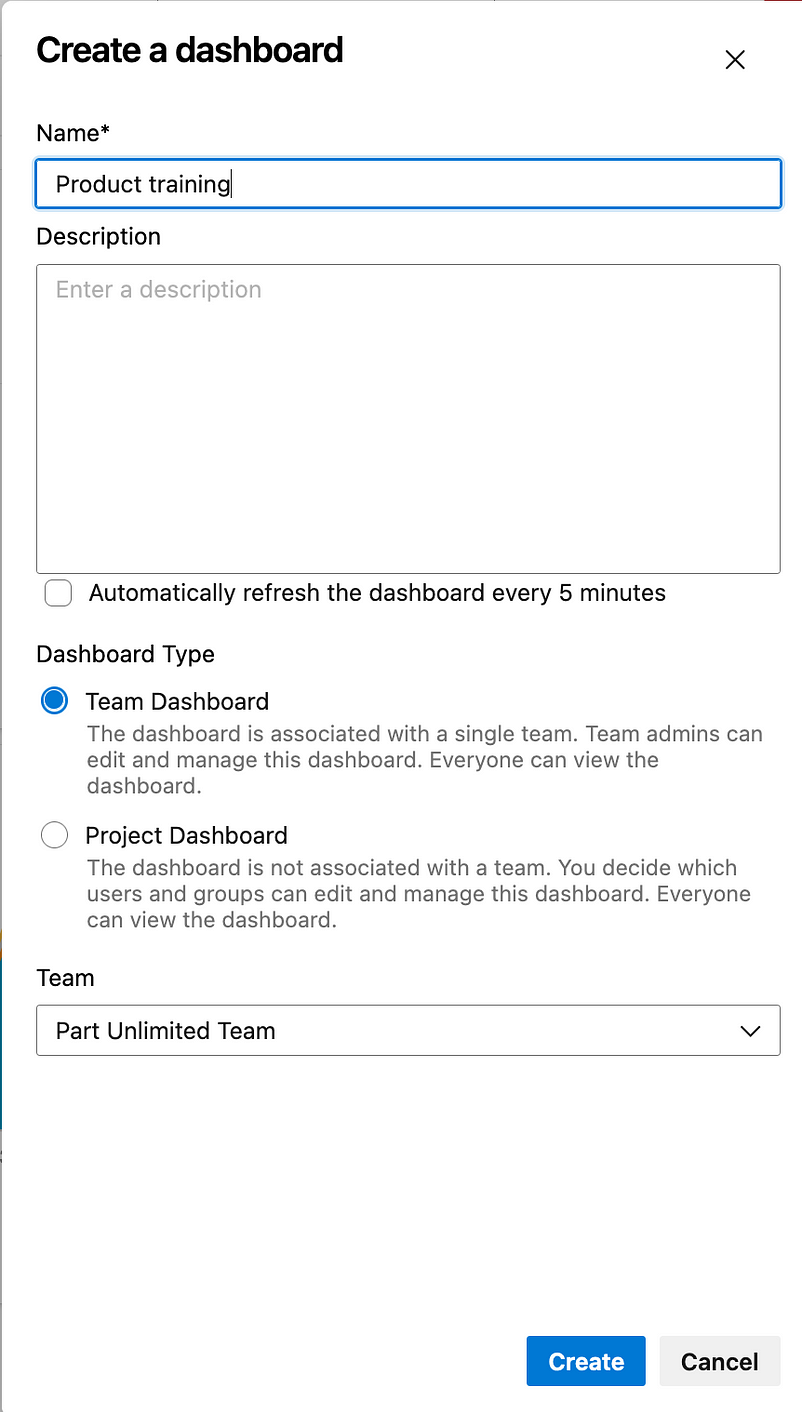
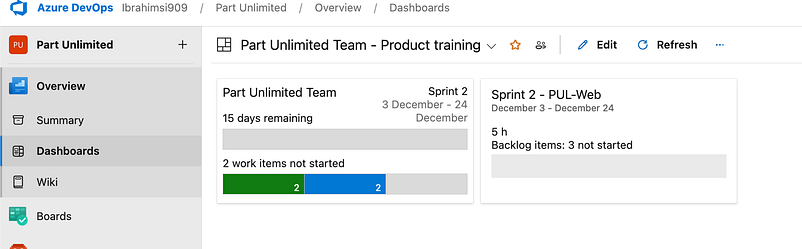
Add a Widget → Sprint Overview → Click Configure
Add anothet widget → Sprint Capacity → Select the team → PUL Web
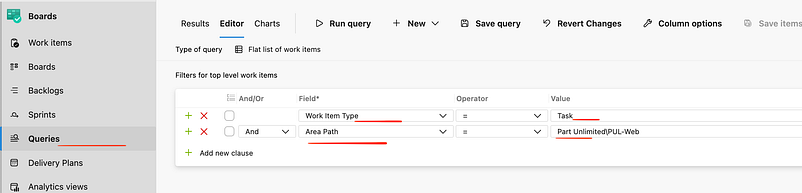
Goto boards → queries → New query → Create a custom query

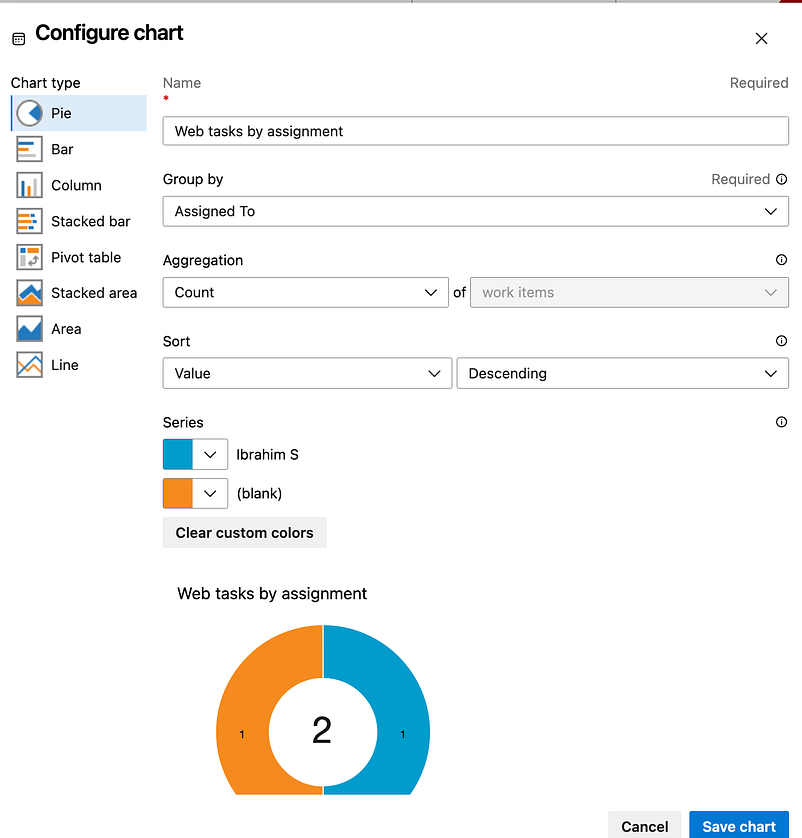
Add Charts → New
Save all → Click save as
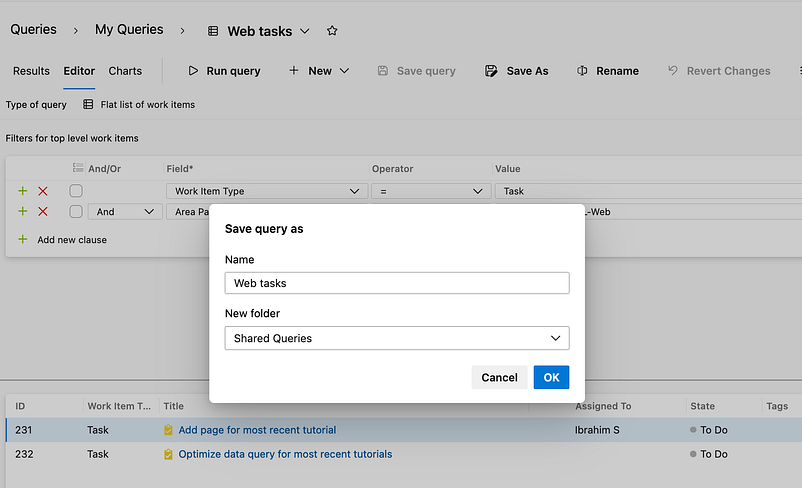
Shared queries → Queries shared across the board.
Goto chart → Add new chart → Assigned to → Save
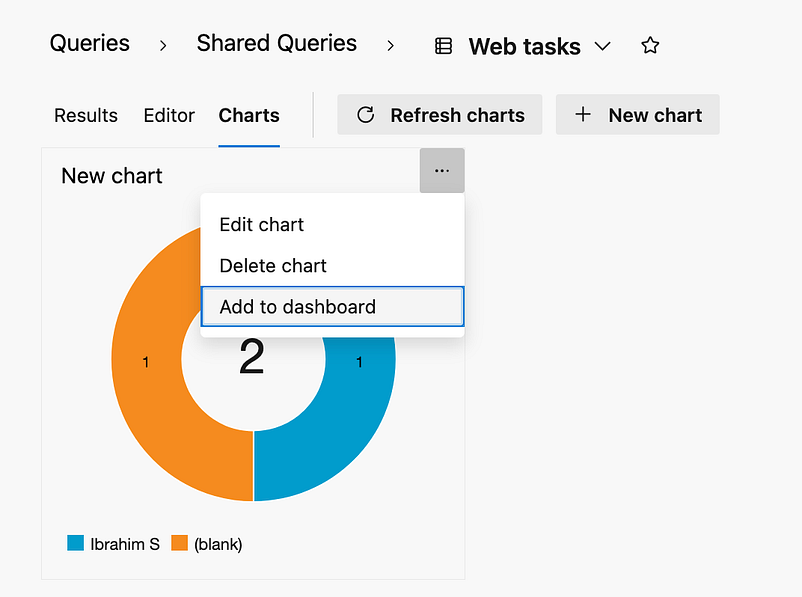
Add to dashboard
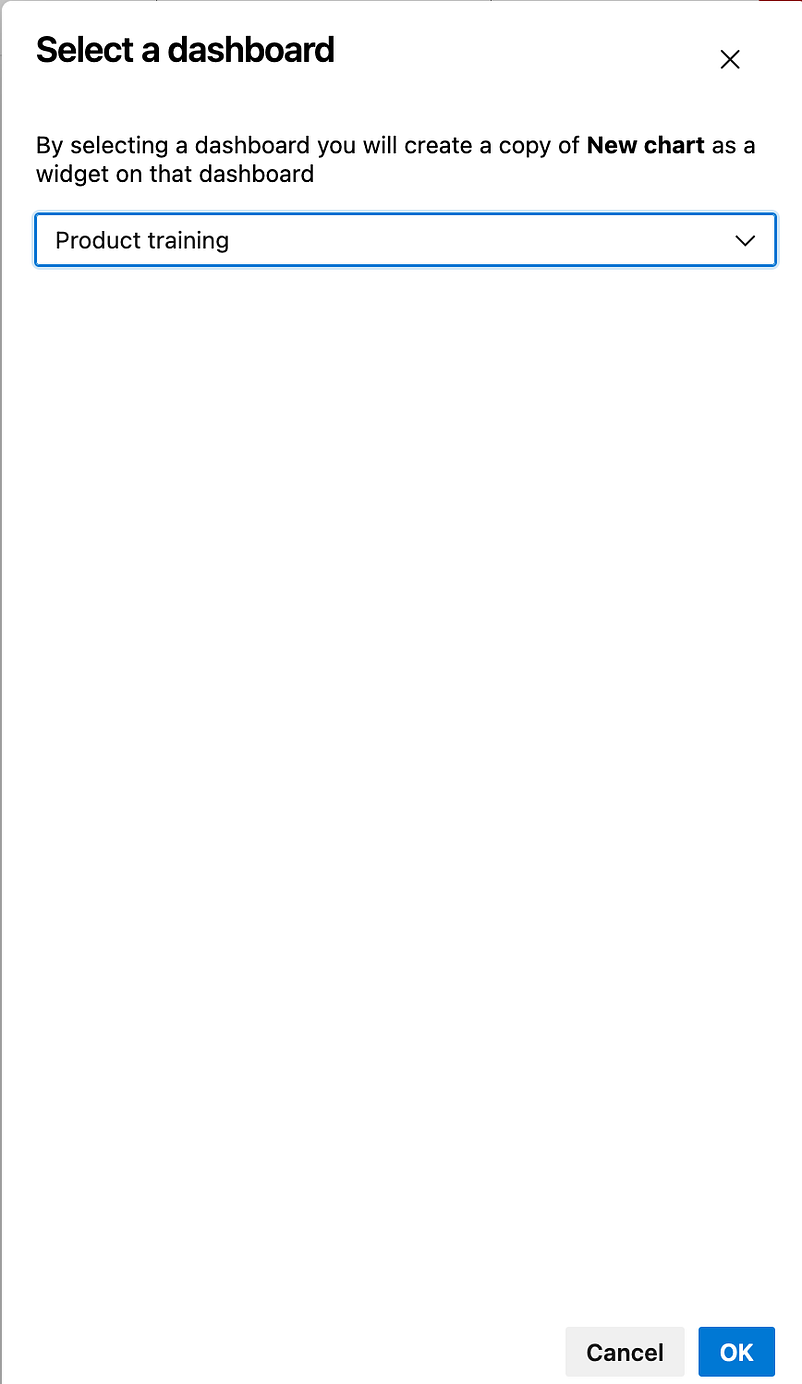
The chart is added to dashboards

Click Edit button → Chart for Work Items → Add
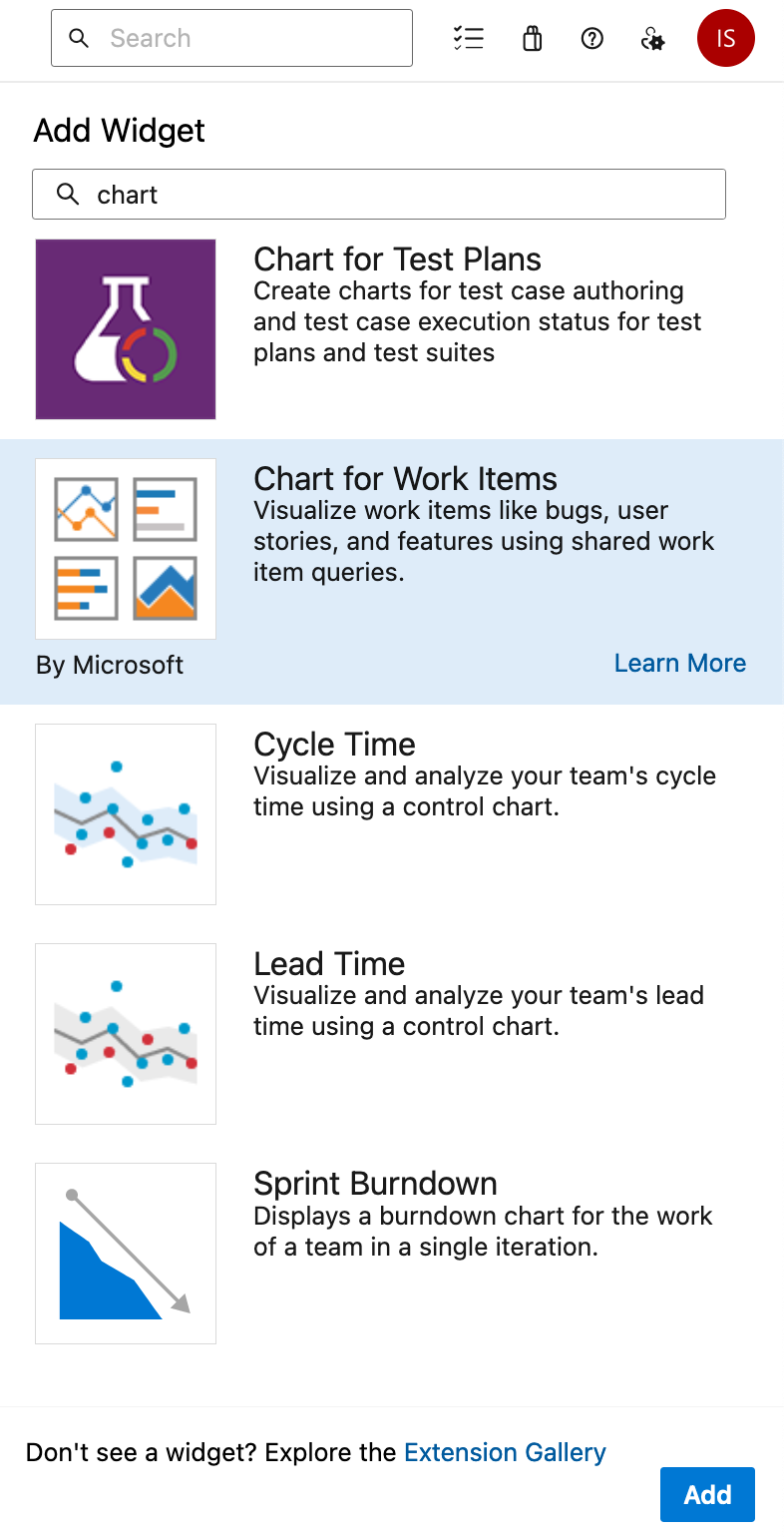
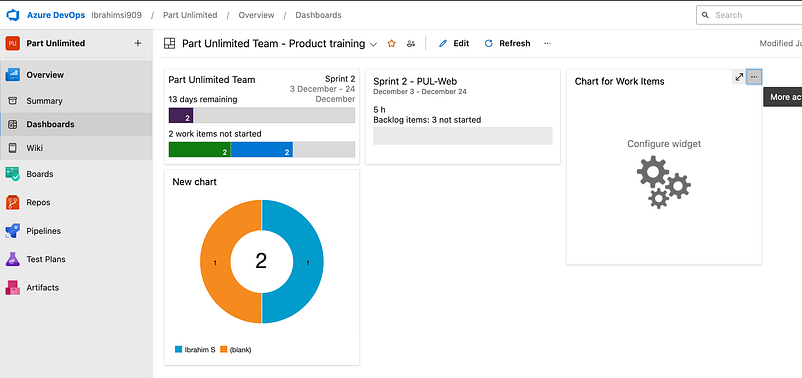
Click Configure
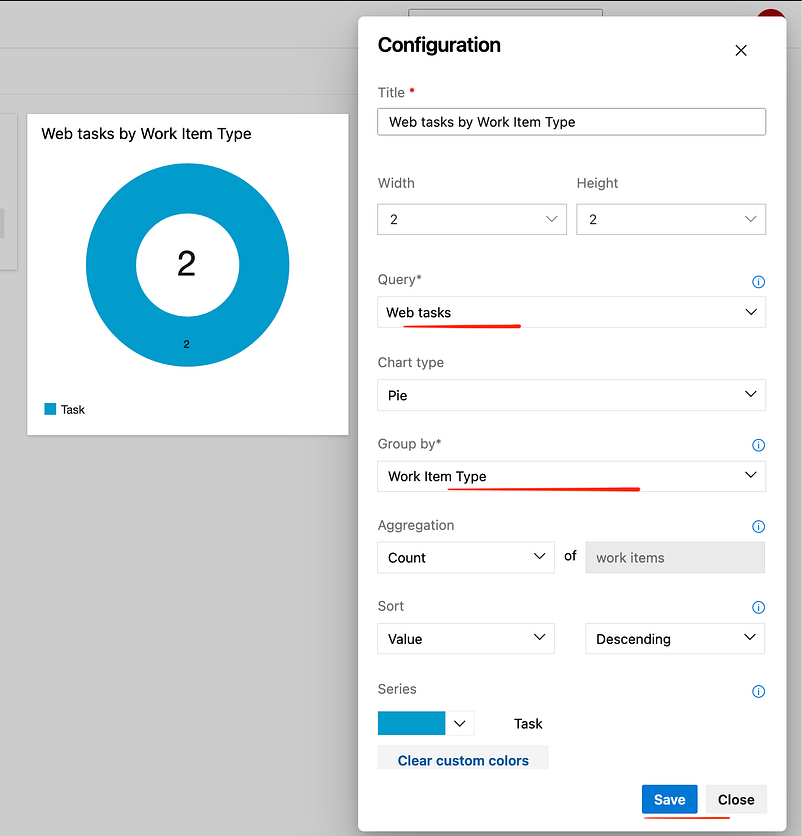
Customize the team process
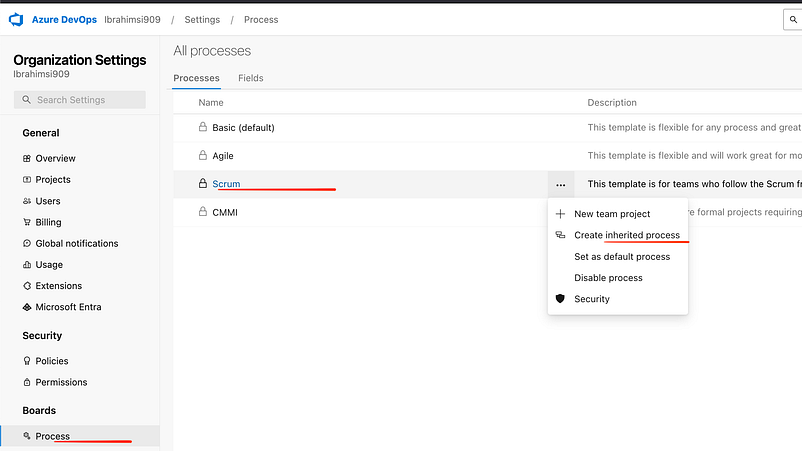
Goto Organization setting → Process → Scrum → Create inherited process
Create a process
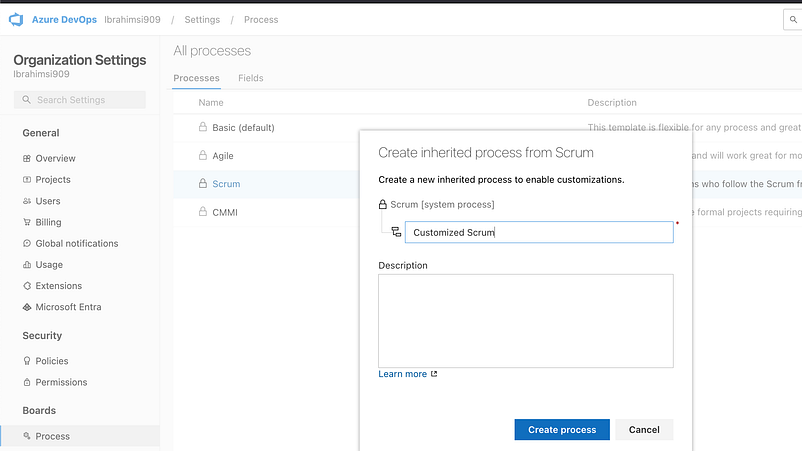
Click the Customized Scrum → Product Backlog Item
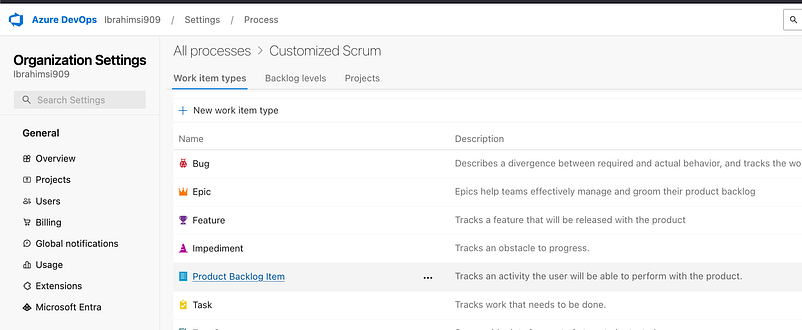
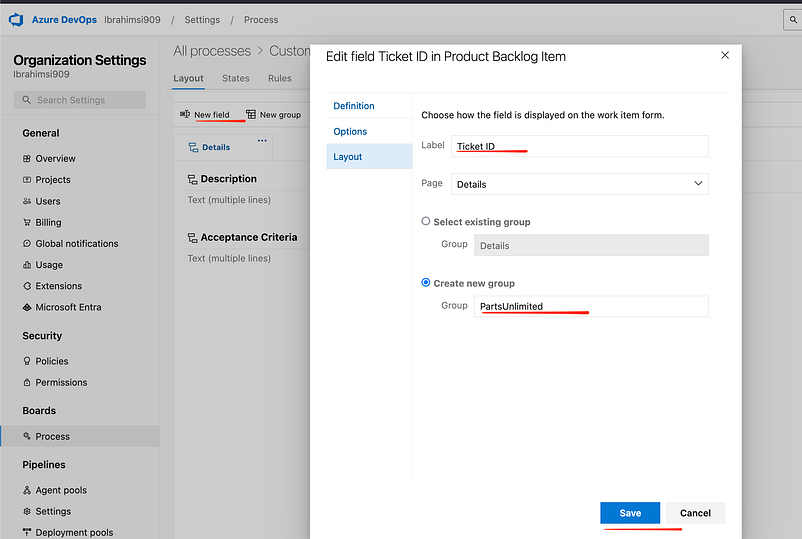
Add → New field → Click Add field
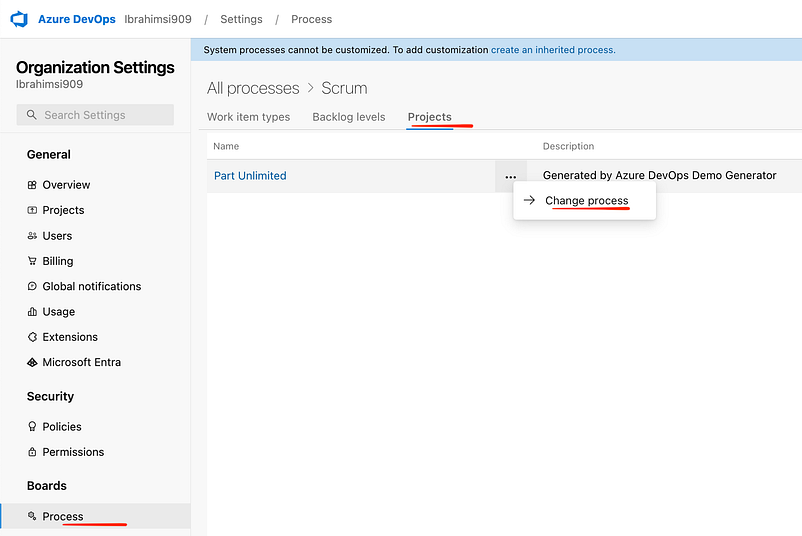
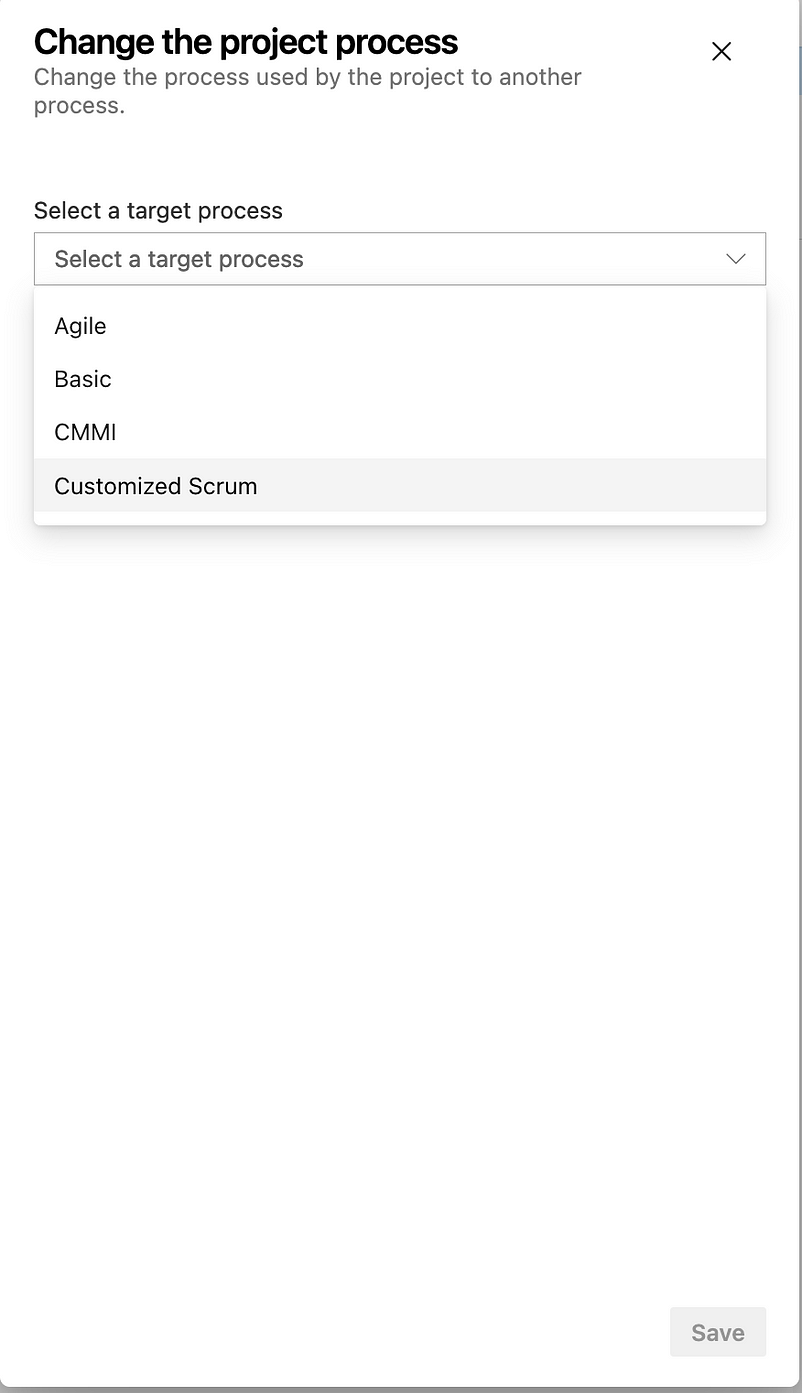
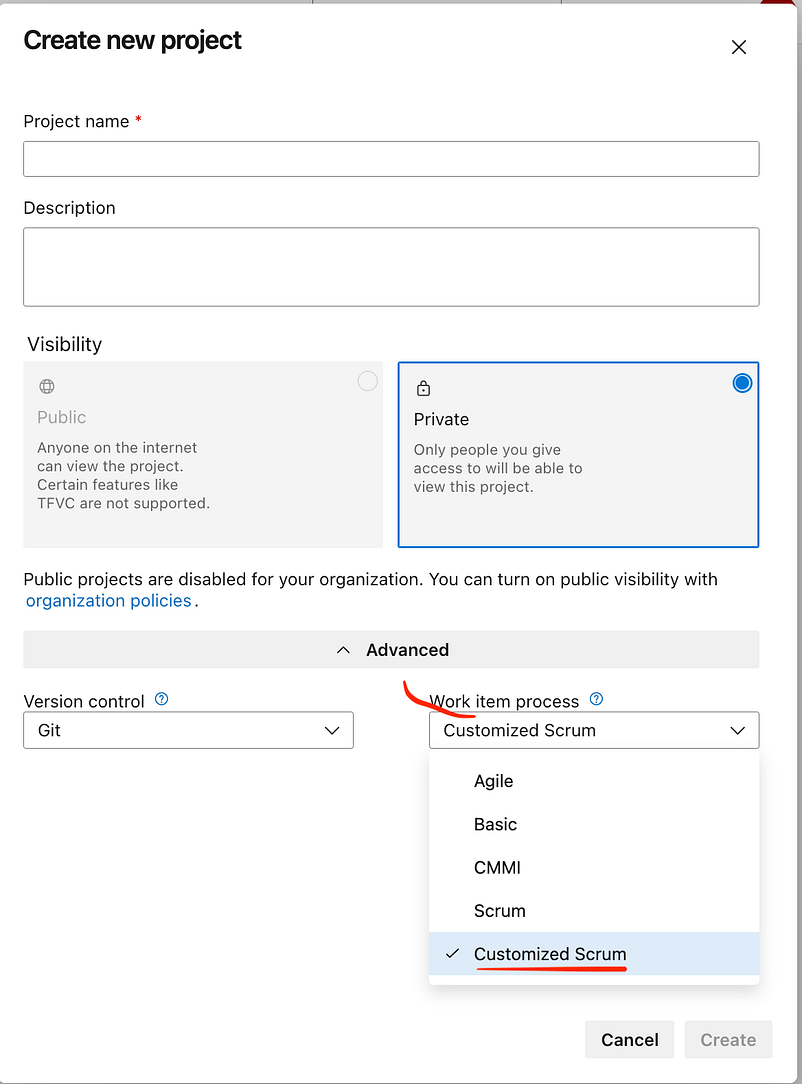
Goto All processes → Scrum → Projects → Parts Unlimited → Change Process
Save — Customized Scrum
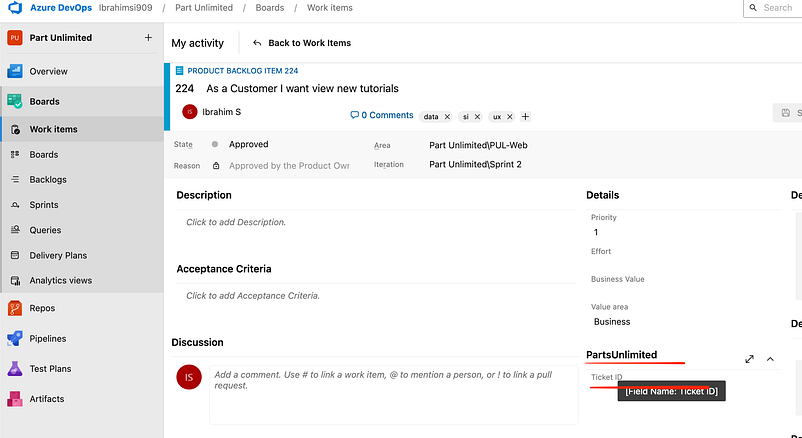
Goto our project → Parts Unlimited → Boards → Work Items

The Ticket ID has been created
If you create a new project the work item process show the customised process….
Thanks for reading…I hope it would be more helpful for understand the Azure Boards.!